
The Currency Settings section allows you to configure how currency is displayed and managed across the entire platform. You can set the default global currency, control formatting options, and define exchange rates for supported currencies.
Key Options: #
- Site Global Currency: Choose the default currency (e.g., USD).
- Enable/Disable Decimal Point: Show or hide decimal points in amounts.
- Add/Remove Space: Add a space between currency symbol and amount.
- Comma Separator: Choose whether amounts use comma formatting.
- Currency Symbol Position: Display the currency symbol on the left or right.

Example of Currency Settings configuration form in the admin panel.
Manage Currency
#
The Manage Currency section lets you add, edit, or remove currencies from the system. You can also update their exchange rates and status.
Key Features: #
- Search by Name: Quickly find currencies in the list.
- Add Currency: Create a new currency with code, symbol, and rate.
- Status Control: Activate or deactivate currencies as needed.
- Default Currency: Mark one currency as the default (e.g., USD).
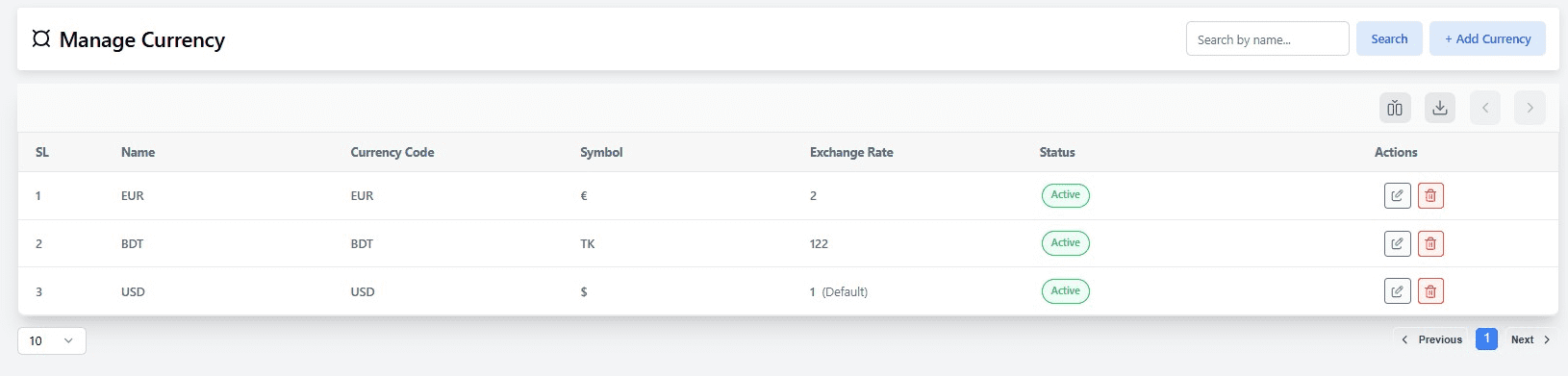
Example of Manage Currency list with multiple currencies and statuses.
Create Currency
#
The Create Currency form allows you to add a new currency to the system. Each currency includes details such as its code, symbol, exchange rate, and status. Multilingual support is provided so currency names can be localized.
Form Fields: #
- Default / English / Spanish / Arabic: Enter the currency name in multiple languages.
- Name (Default): The display name of the currency (e.g., US Dollar).
- Currency Code: The ISO code for the currency (e.g., USD, EUR, BDT).
- Symbol: The symbol used for the currency (e.g., $, €, ৳).
- Exchange Rate: The rate compared to the default site currency.
- Status: Set the currency as Active or Inactive.

Example of Create Currency form with multilingual fields and exchange rate setup.


